 By
By It took me a long time before deciding to try the new Canva Affinity.
I just didn’t want to give up the ownership of my software, even in exchange for a free version. But then I found up I don’t have to?
If you are also in the same boat as I was, still wondering whether it’s worth it to switch from Affinity Photo 2 to the new Canva Affinity free version, then I’m here to help you make a decision.
In this guide, I’ll walk you through the biggest differences between these two apps.
Let’s figure out if it’s actually a worthy upgrade.
Why I (Finally) Switched To Canva Affinity?
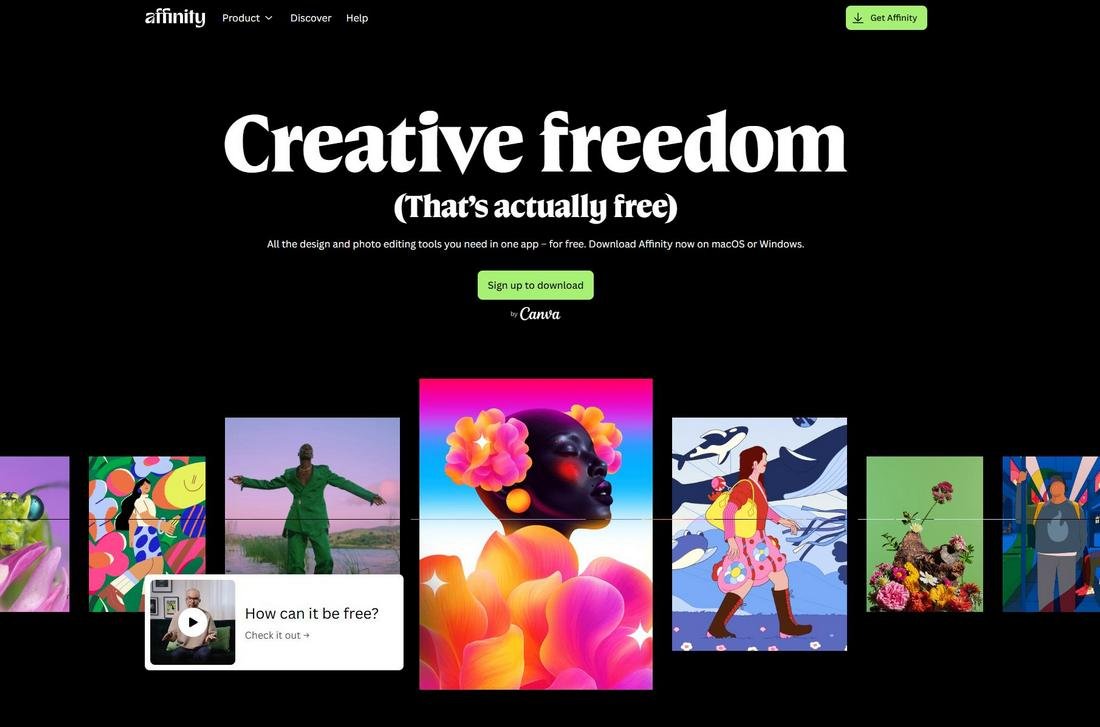
When Canva made the announcement about making all Affinity software free, I was very skeptical about their move.
Because by experience I know that nothing in life is free. There is always a hidden price you have to pay.
So, as a proud user of Affinity Photo 2, I was reluctant to upgrade to the new, free version.
But I’m glad it’s made possible by Canva because so far, Canva has managed to keep its promises and offer free services without strings attached.
Even the Affinity team shared a video reaffirming that they don’t have any shady plans. I hope they stick to their word.
Still, I was very reluctant to switch from my trusty old Affinity Photo 2. But then I realized there’s a simple solution. I could install and run both versions of the app separately.
So, after trying the new app for a while, I’m confident that it will be a game-changer for sure. Especially for challenging Adobe as a solid Photoshop alternative that is also free.
Now, for those of you who are also worried about switching, the short answer is you don’t have to. There are only a few changes this new version of the app offers, and if you’re happy with Photo 2, you don’t have to switch at all.
If you’re considering upgrading, here are the main differences between Canva Affinity and Affinity Photo 2.
1. All-In-One Package
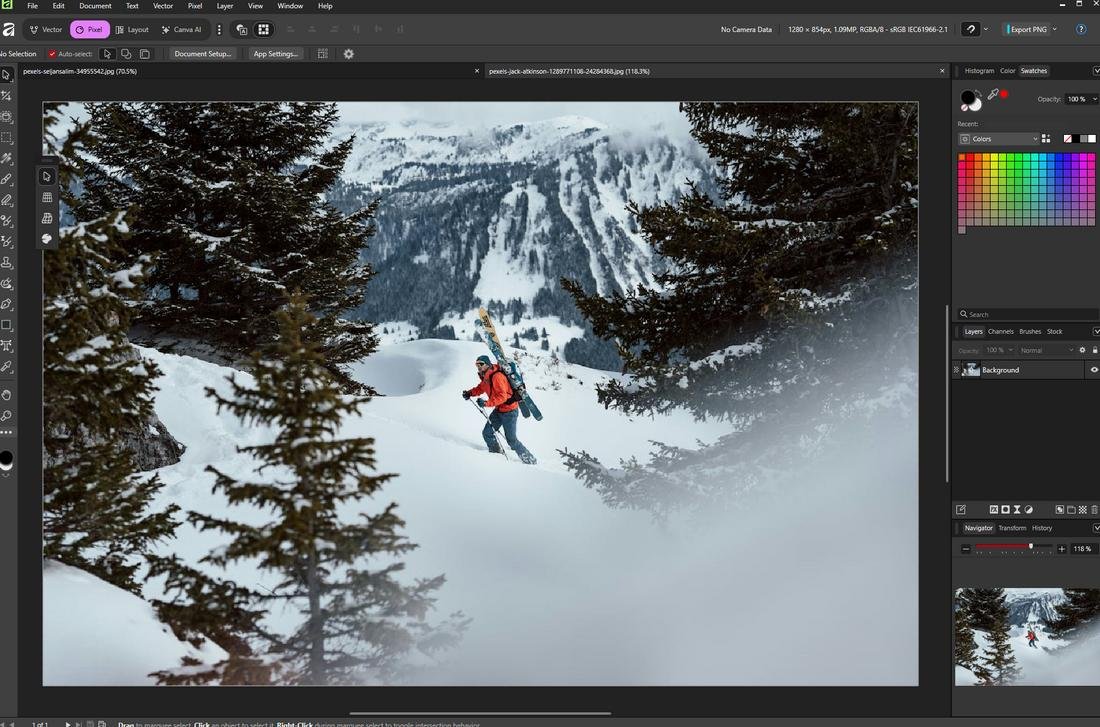
The biggest change you’ll notice right away in the new Canva Affinity software is the way it combines all three major Affinity apps into one place.
Canva Affinity features the Affinity Photo, Affinity Designer, and Affinity Publisher, all in one package. You can effortlessly switch between them without having to open different apps.
They are available as Vector, Pixel, and Layout. I was also impressed when I learned that these program modes can automatically change based on the type of document I’m working on.
For example, while I was working on a photograph, I dragged and dropped a vector document into the app, and it automatically switched to the Vector mode.
And then, when I clicked on the photograph again, it quickly switched back to the Pixel mode.
This is a huge time-saver for designers who work with multiple types of graphic formats. Normally, you have to keep multiple apps open to do this kind of tasks.
2. AI Stuff
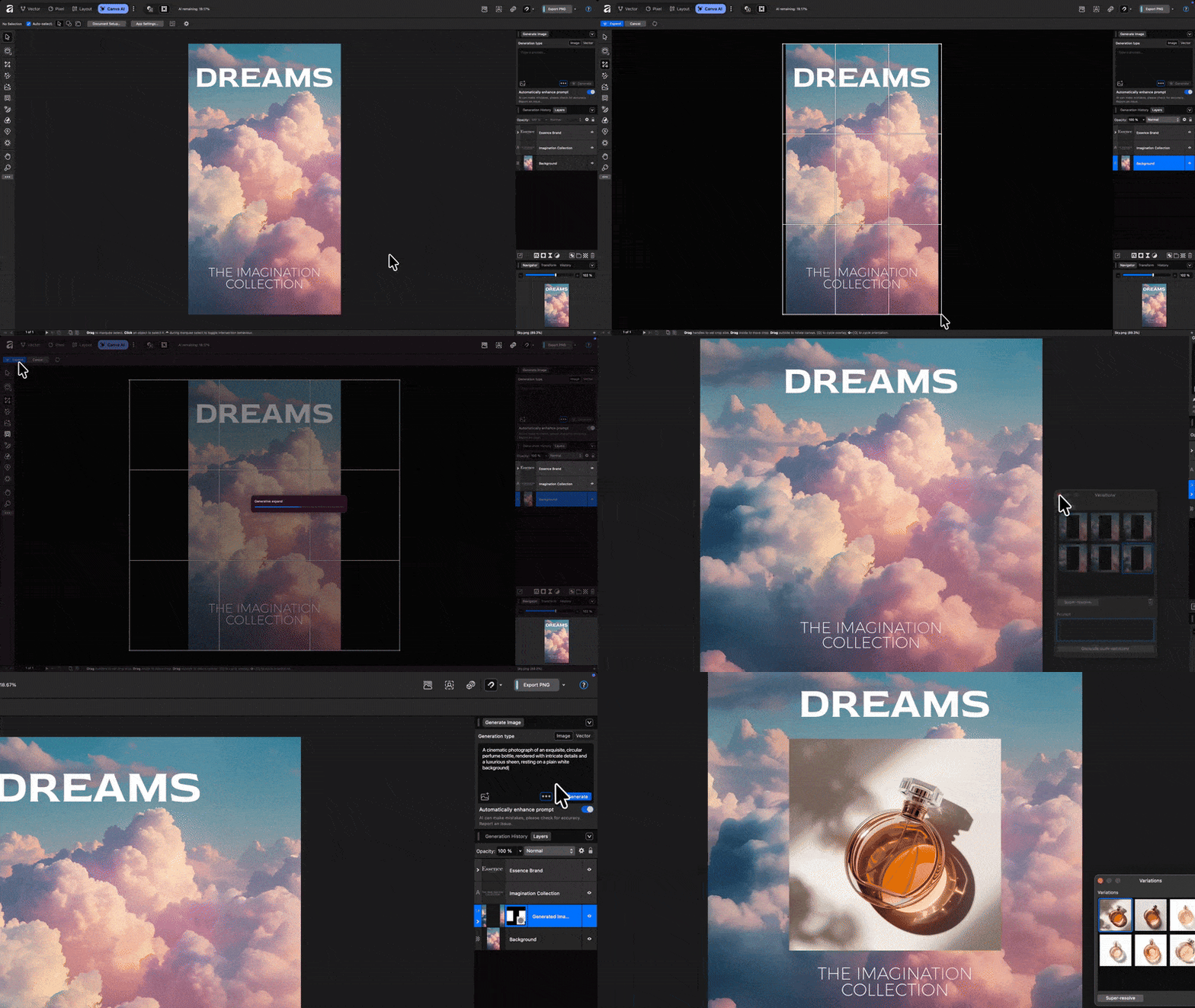
Many users have been begging the Serif team to add generative AI tools to Affinity, like in Photoshop. Well, whether you like it or not, now you have them.
The second major change in Affinity is the AI tools. This is available right alongside the main three software modes, titled Canva AI.
These are some basic AI tools that make your life a bit easier, like better object selection, expanding images, background removal, and image-to-vector tools.
To access these AI tools, you need to have a paid Canva subscription. But you don’t really need these AI tools in the first place.
If you want to remove background, expand images, or do other generative AI stuff, you can always use an online AI platform like Google Gemini or ChatGPT. They’ll do that job for free.
3. Improved User Interface
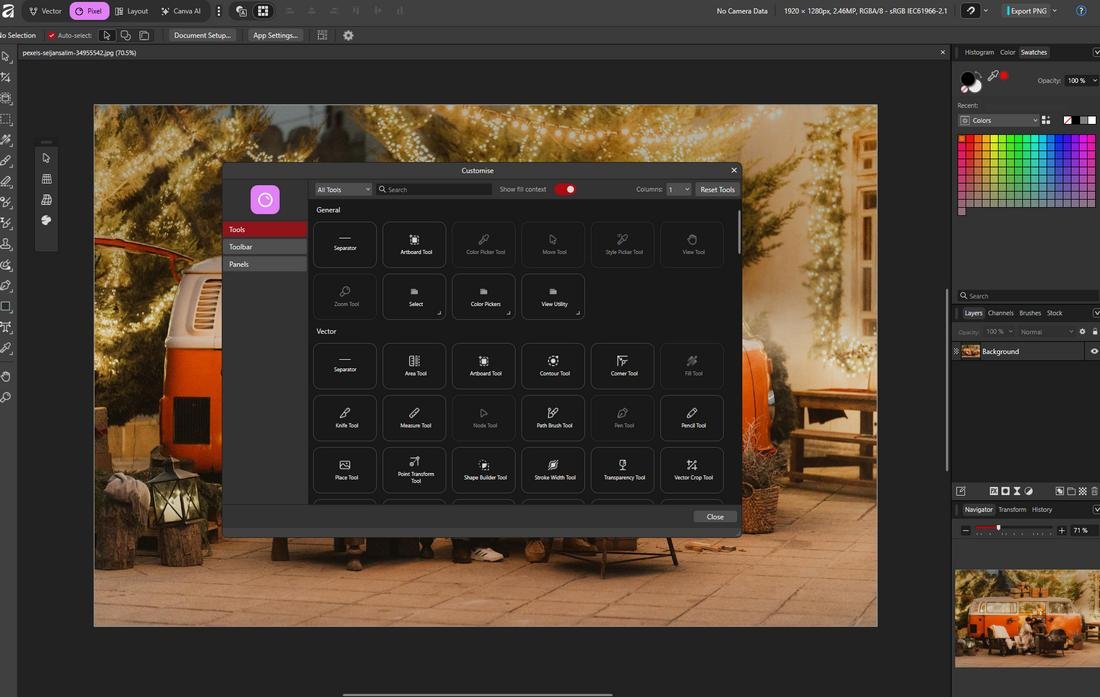
The user interface of the software has also received a big improvement. You can now fully customize the layout of the UI according to your preference.
You can change and adjust the icons on the toolbar. Add or remove panels from the side, and create separate toolbars to speed up the workflow.
For example, if you want to quickly grab a specific tool, say like the Star tool, without having to navigate the menus, you can now add it to a custom toolbar to access it with one click.
4. New Tools & Features
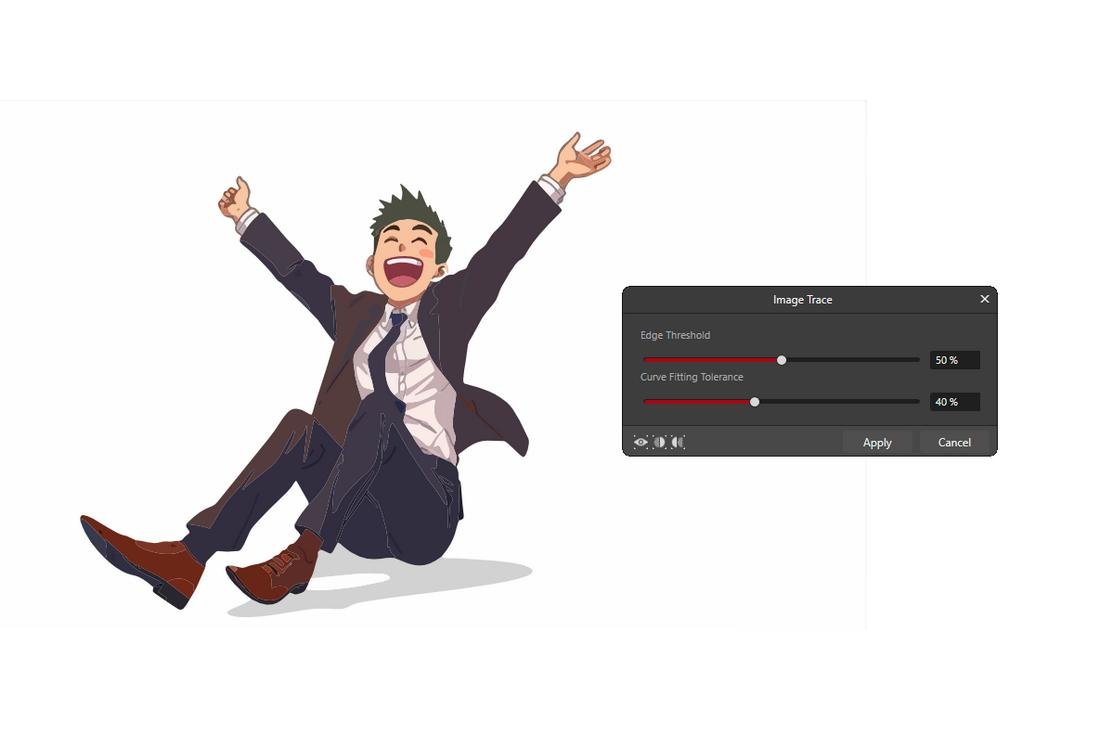
A few new tools and features have also been added to the Canva Affinity software. These tools are not available in the current version of Affinity Photo 2.
- Image Trace Tool
- Vector Trace
- Gradient Mesh Tool
- Filter Brush Tool
- Adjustment Brushes
- Hatch fills
- Live Glitch Filter
- ePub Support
5. Menu & Shortcut Changes
Some of the menu arrangements and keyboard shortcuts have been changed in this new version of the app.
For example, I’m used to pressing Control + Alt + Shift + S to export images. But now it has been changed to the letter W.
Also, some of the menus look a bit different now, like the Window menu, which I’m used to navigating in order to enable or disable panels. Now it’s done through the UI customization menu.
These changes caught me off guard. But they aren’t deal breakers. It will take a bit of getting used to, though.
It Works Offline
Most free apps and software require a constant internet connection to be able to run the app. I was relieved to learn that Canva Affinity doesn’t require a constant connection.
It does require you to sign in to your free Canva account after installing the app for the first time. After that, you don’t need the internet to launch and use the app.
Should You Switch To Canva Affinity?
It’s worth checking out the app. It’s free after all. And it includes lots of new tools and additional features.
Plus, all of Affinity’s future updates will be released through this new app. So if you want to have a better and improved experience, you should consider switching to Canva Affinity.
Of course, if you’re happy with your current Affinity Photo 2 setup, don’t worry. It’s not going away. You can continue to use it for as long as you like. I also have it installed alongside the new Canva Affinity, just in case.